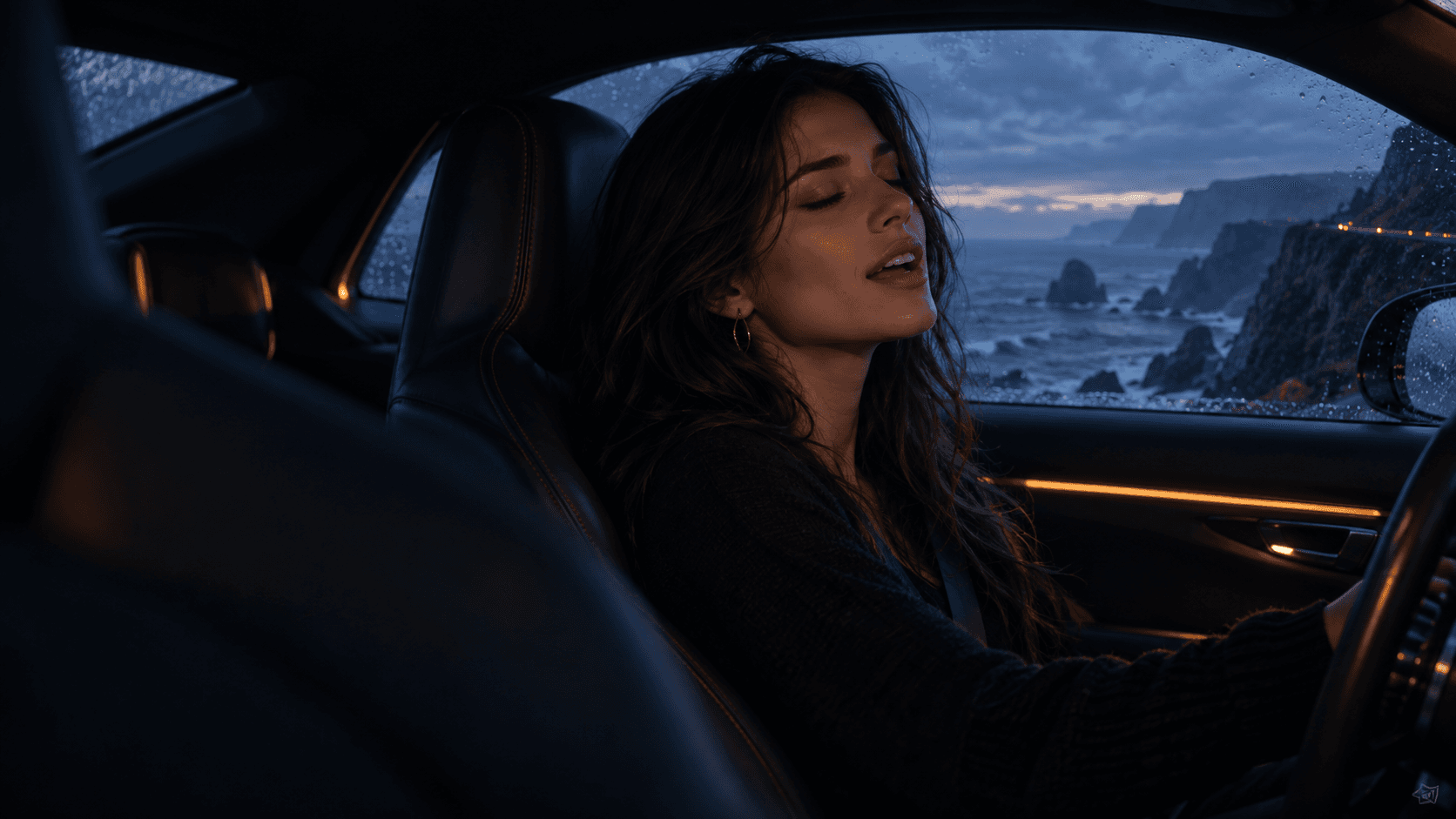

STEP 01
Build your reference kit
Upload your character, location and object images. Add descriptions and memorable @tags. Bring a soundtrack if the story starts with a song.
Your cast, world and sound
Your music. In motion.
Create music videos and audio-driven clips with characters that sing in sync with your song. Reuse your cast, locations and objects across scenes, then bring it all together on a timeline built around your sound.
Music videos
Audio-driven clips
Lip-synced performances
160 starter tokens ·No card required
Select a step to explore
From references to scenes
Illustrative workflow preview

Original photo
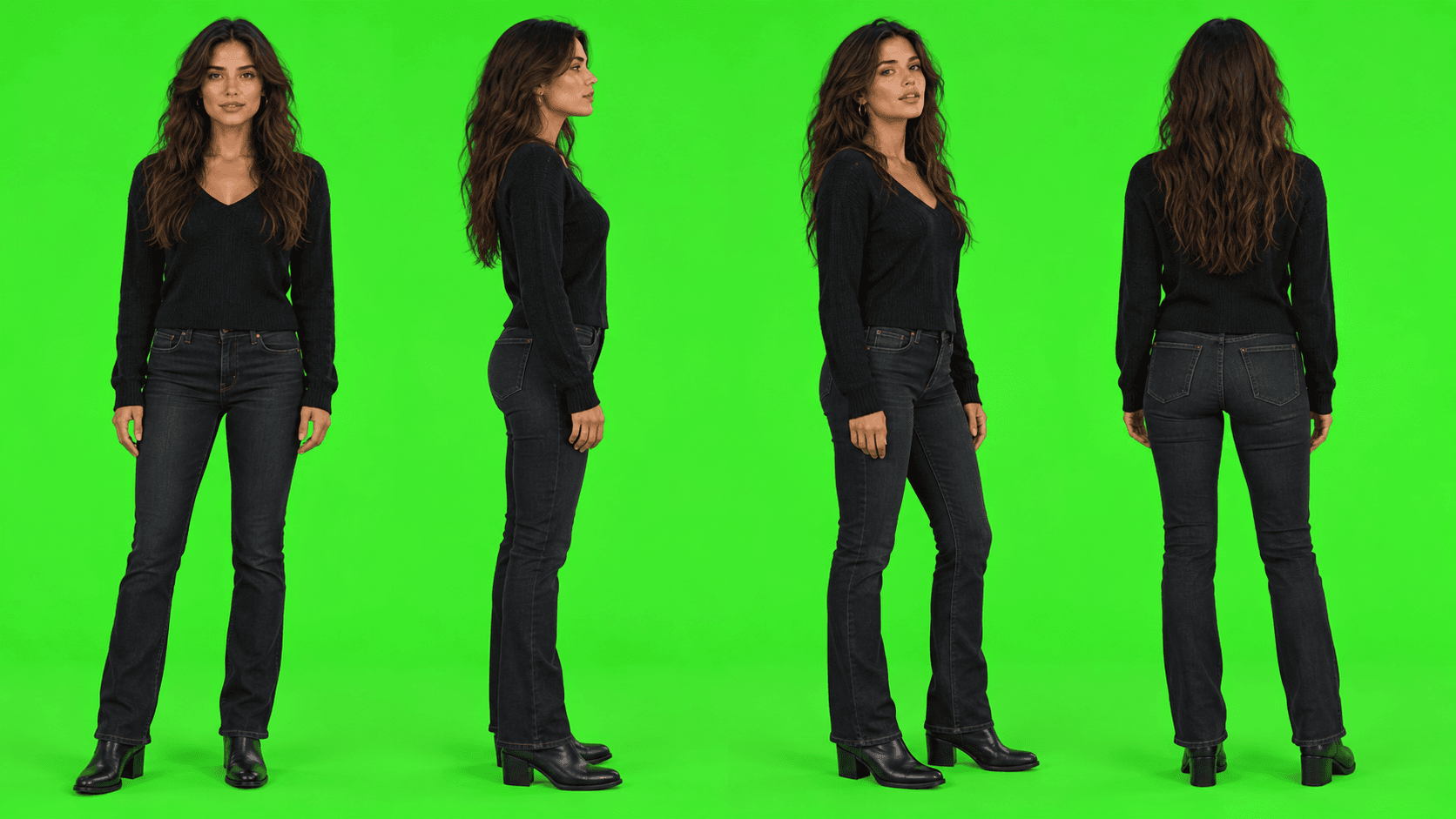
AI character · 4 angles
STEP 1 OF 6
Upload your picture, add a short prompt and age, then create a reusable four-angle character.
EXAMPLE CHARACTER DETAILS
“Long wavy brown hair, black sweater, dark jeans.”
Age: 28 · Tag: @mara
Picture + prompt + age → @mara
Workflow demonstration · not a live generation.
Illustrative artwork and workflow. AI generation, lip-sync and finished video export are not live yet.
Reuse your reference kit instead of uploading and describing the same world again.
Let asset details and style templates handle the repeatable parts of the brief.
Keep scene direction, sound cues and timeline decisions together.
Your best assets shouldn’t be one-project wonders
Your recurring character. Your signature product. That perfect location. Build a reference kit you can bring to the next campaign, episode or idea — then change the scenario, not the whole setup.
One reference kit. Three different stories.
Interactive workflow example
Your reusable references
Mara
Character · face & appearance

Red cabriolet
Object · shape, color & detail

North coast
Location · reference & setting
Carry the reference images and descriptions forward. Give them @tags, then write the next scene around them.
PROJECT 01
Brand campaign · landscape
YOUR SCENARIO
Style template · Cinematic reveal
Establish your cast and product references in the first project.
Keep the details
Carry forward the images and descriptions that define your characters, products and settings.
Change the direction
Write a fresh scenario and choose a different style without rebuilding your reference kit.
Make each project its own
Reuse a starting point, then evolve each copy independently for the story you are telling.
Preview note: cross-project reference copying is local today. A synchronized cloud asset library is planned; it is not included in this preview.
How Muvi works
Start with who and where. Tell us what happens. Then take control of the timing, look and edit.
STEP 01
Upload your character, location and object images. Add descriptions and memorable @tags. Bring a soundtrack if the story starts with a song.
Your cast, world and sound
STEP 02
Pick a template for camera movement and visual tone. Describe what happens using your asset tags — Muvi resolves the references into a detailed model request.
A clear brief, without the repetition
STEP 03
Set the aspect ratio and duration. Adjust the referenced audio segment, inspect the prepared request, and keep draft versions as you explore the idea.
A scene you can revisit and extend
STEP 04
Arrange clips on the timeline. Trim timing, layer sounds and titles, and add effects and transitions. Prepare export settings for the format you need.
One workspace from brief to edit
Designed around creative decisions
A prompt box is only the beginning. Muvi gives the scene its cast, its visual language and its place in the bigger story.
YOU WRITE
@mara drives @red_car along @north_coast.
Muvi prepares
Reference images
Character details
Camera direction
Visual style
Tagged references carry the background information. Style templates add camera movement and visual direction. Review the exact prepared request before sending it to a model.
@coastal_pulse
Selected song segment
● Intro
● Beat drop
● Outro
Choose a character, reference your song with an @tag, and select the vocal segment. Muvi prepares instructions for mouth shapes, phrasing and pauses — not just movement to the beat. Keep your original recording as the soundtrack.
Audio-guided lip-sync · coming with the live generation integration. Preview requests available now.
Arrange multiple video and audio tracks. Trim clips, extend a scene draft, layer titles and add effects or transitions. Adjust the timing without losing your references or the earlier ideas.
Your story, assembled
Timeline illustration
Titles
The coast is calling
Effects
Warm film
Scenes
01 · The arrival / 02 · The drive / 03 · The reveal
Audio
Coastal pulse · music & timing cues
For music makers. For storytellers.
A chorus, a voiceover, a scene you can’t stop imagining. Muvi brings sound references, recurring characters and scene-by-scene direction into one creative workflow.
Build a visual story around your track. Mark the intro, chorus and beat drops, choose song segments for each scene, and plan performance shots alongside narrative moments.
One song. A scene-by-scene vision.
Develop your cast and locations once, then reuse their references across the story. Set camera direction for each shot and arrange scenes, dialogue, music and titles.
From opening shot to final scene.
Turn a hook or favorite verse into a focused clip. Choose a vertical canvas, plan a concise sequence, and add titles and sound cues for your social edit.
A big idea in a short format.
Start with a voiceover, spoken-word recording or atmospheric soundtrack. Add time markers, plan matching visuals and layer sound as your story unfolds.
Let the sound lead the story.
Reference your character and a selected vocal segment together. Prepare lip-sync and performance instructions, then shape the scene around the song’s phrasing.
Audio-guided singing · integration preview
Bring familiar characters, products and locations into the next release. Reuse your reference kit for a teaser, a new episode or another chapter of the same world.
Same world. More stories.
Explore these workflows in the preview. AI generation, audio-guided lip-sync and finished video export are not live yet.
A little more clarity
What you can make, what you can reuse, and what is available in today’s preview.
Music videos, song-driven social clips, short films, character performances and stories built around voiceover. Use tagged audio segments to brief a scene, reuse your cast across shots, and arrange sound, titles and clips on the timeline. Today you can plan and edit these workflows; AI rendering and finished video export are still mocked.
Muvi is a workspace for directing AI video: organize references, write scenes, choose visual styles, prepare model requests and assemble a timeline. It brings the creative decisions around each shot into one project.
That is the core workflow: bring character, location and object references into another project instead of starting again. The current preview includes a local-reference copy workflow. A synchronized, account-wide cloud asset library is not available yet. Copies are independent, so editing one does not update every project.
Give an asset a tag such as @mara or @red_car, then mention it in the scene description. Muvi resolves the tag into its reference images and details when preparing the model request. The model receives explicit instructions, not an unexplained nickname.
Templates provide camera movement, stabilization and visual-grade direction, so you can focus on the action. You can reuse a visual approach across scenes, while choosing the characters, setting and scenario separately.
Yes. Add a tagged audio reference to the scenario and select the segment that should guide the scene. Timeline markers help you arrange cuts around specific moments. Exact singing or motion synchronization depends on the eventual generation provider and is not guaranteed.
You can sign up, upload references, organize projects, prepare Seedance requests and edit a timeline. Generation currently produces mock drafts rather than AI-rendered images or videos. Export prepares a mock job, not a finished video file. Payments are also mocked.
Choose a plan to start — Hobby’s first month is free and includes 500 tokens that never expire. Scene drafts cost 100 tokens; character, location and object drafts cost 20 each. Uploading, editing and inspecting a cURL request are free.
Start with a scene. Build a world.
Bring your references, explore a style, and start creating. Hobby’s first month is free — 500 tokens that never expire.
Cancel anytime from Billing. Purchased and monthly tokens never expire.